View resources across projects
By default, every view in vCluster Platform is project-scoped. When you are working inside a project, the tenant clusters, namespaces, machines, and secrets you see belong only to that project. This is by design. Projects are isolation boundaries, and members of one project cannot see another project's resources.
For users managing a single project, this is exactly the right behavior. For users managing multiple projects, switching context to check each one separately creates friction. Those projects might represent teams, environments, or customer accounts. The All Projects view removes that friction by surfacing resources from all active projects you can access in a single table.
All Projects doesn't bypass project permissions. It shows only the projects and resources your account can access. If you support multiple customers, each mapped to a project, All Projects gives you a single place to check status and find the resources that need attention.
Open cross-project views
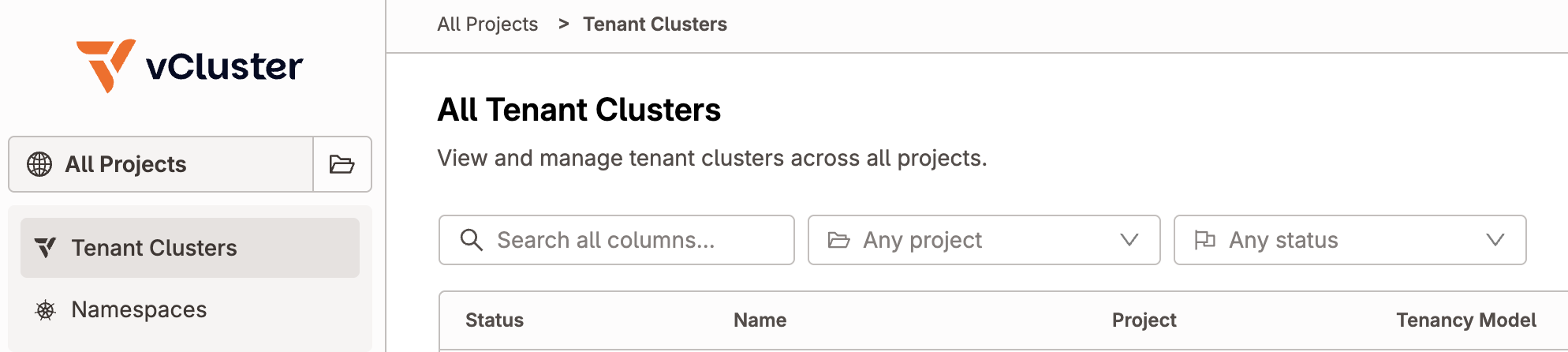
In the left navigation, click the globe icon (All Projects) in the project switcher. The sidebar changes from project-specific navigation to cross-project navigation.
The project switcher is a split control. The globe icon on the left represents All Projects. The folder icon and project name on the right open a dropdown to select a specific project.
Clicking the globe icon from any project view switches to All Projects and opens the equivalent section. For example, clicking from a project's Tenant Clusters page opens All Tenant Clusters. Clicking from a section that has no All Projects equivalent (such as Secrets) opens All Tenant Clusters by default.
Clicking the right side opens a project list. Selecting a project from the list switches to that project and opens the section that corresponds to wherever you are in All Projects. For example, selecting a project while viewing All Namespaces opens that project's Namespaces page.
Cross-project views
All Projects provides four views. Each table includes a project column and filters so you can scope the list without leaving the cross-project context. Visible table columns are configurable by each user, so the columns you see might differ from another user's view.
| View | Use it to |
|---|---|
| All Tenant Clusters | Review tenant clusters, their status, project, template, owner, version, and control plane placement. |
| All Namespaces | Review namespaces, their status, project, template, owner, and control plane cluster. |
| All Machines | Review machines, their project, assigned tenant cluster, infrastructure provider, network environment, and operating system image. |
| All Network Environments | Review network environments, their project, provider, owner, and default status. |
Network Environments is a sub-view of Machines, accessible from the Machines navigation item.
To make changes to a resource, such as upgrading, deleting, or changing its configuration, click it to open the project-scoped detail page. The sidebar switches to that project automatically.
Clicking a project link in a row opens that project's equivalent page. For example, clicking a project link in the All Tenant Clusters table opens that project's tenant cluster list.
Filter by project
All Projects tables include a project column and project filter. Use the project filter to narrow a table to one or more projects while staying in the cross-project view.
Unavailable in cross-project views
The following are only available in project-scoped views:
- Secrets — project secrets are managed from each project's Secrets page.
- Project settings — membership, allowed clusters, allowed templates, and quota settings require opening a specific project.
To access these, select a project from the project switcher.
Permissions
All Projects follows the same access rules as project-scoped pages:
- Users only see active projects where they have access.
- Projects pending deletion are not included, even if you could access them before deletion started.
- Users only see resources their permissions allow them to list or use.
- A user with access to one project can still use All Projects, but the tables and project filter only include that project.
- Direct links to project-scoped routes still require access to that project.
For more information about project membership and roles, see Users and permissions and What are Projects.