Building a Mini Local AI Factory with vCluster and HAMi

Jul 6, 2026
|
13
min Read
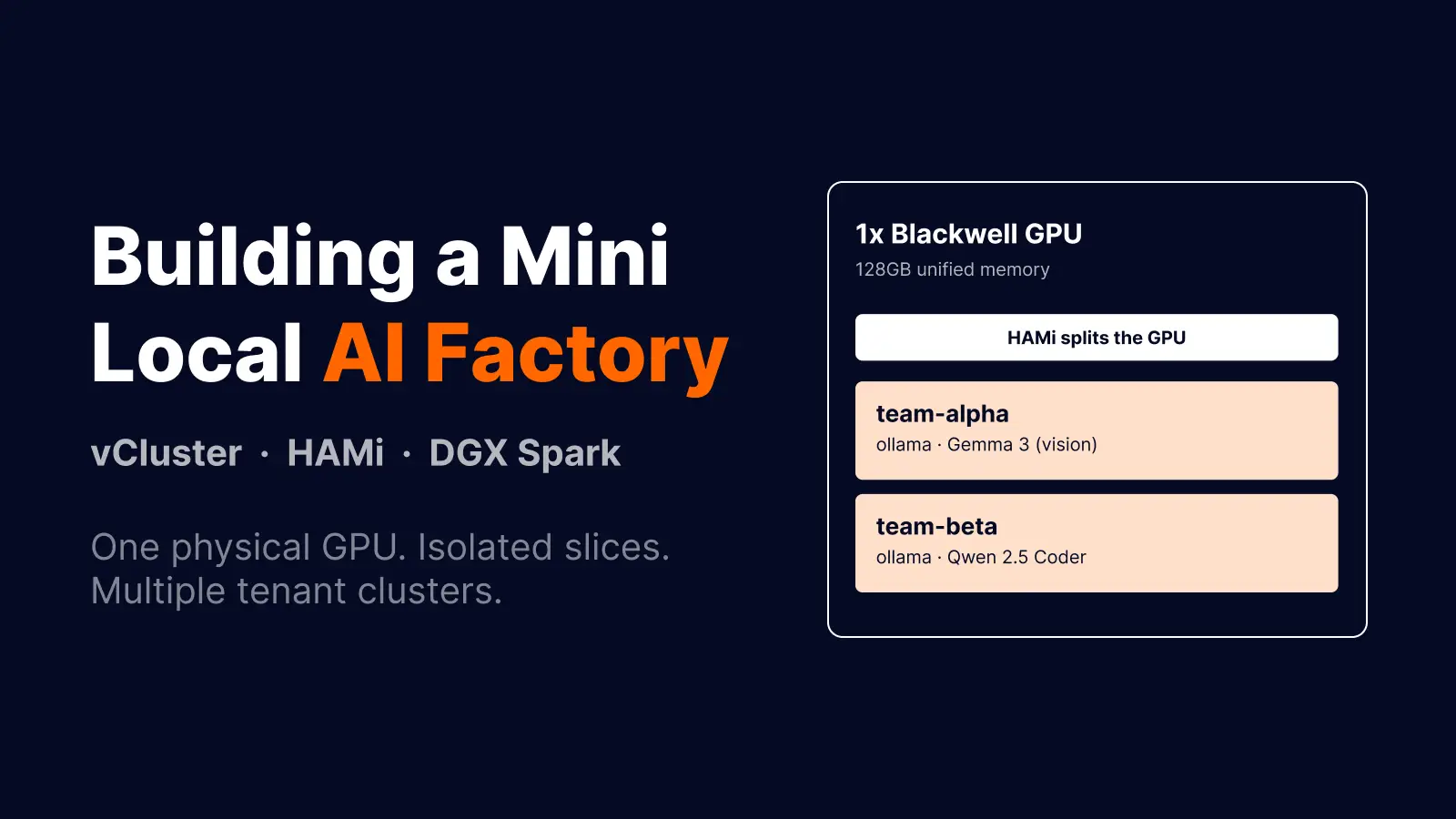
AI infrastructure is quickly becoming a platform problem, not just a model problem.
Running one model on one GPU is useful for a demo, but it does not answer the questions platform teams face in practice:
This article walks through a mini local AI factory built with:
The goal is to show the platform shape behind modern AI infrastructure:
One Kubernetes control plane.
One GPU worker.
Multiple tenant clusters.
One shared physical GPU.
Multiple inference workloads.
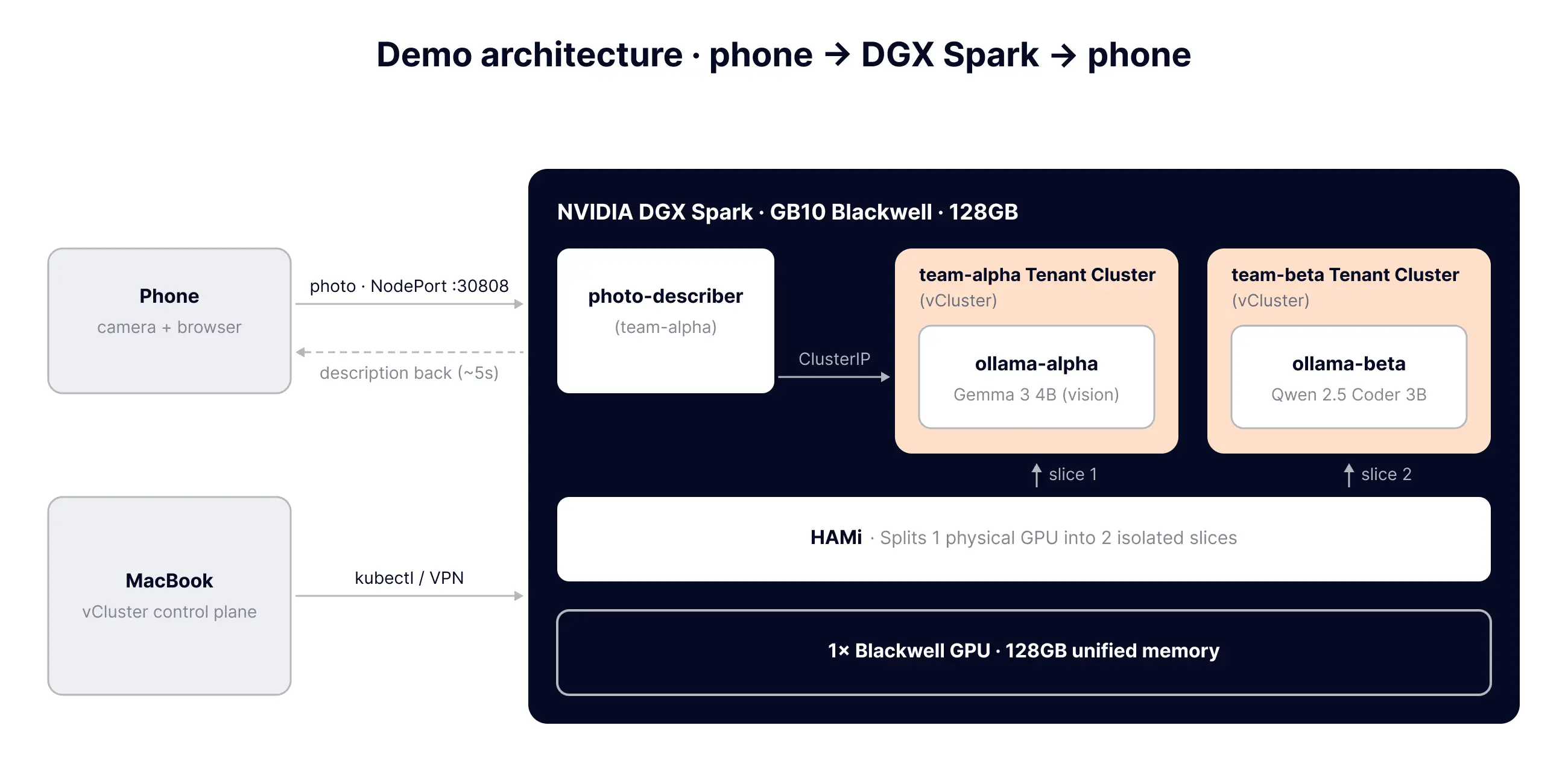
The mini AI factory has four platform layers:
The application on top is intentionally simple: an iPhone captures an image, sends it to a Kubernetes application, and the application calls an Ollama model running on a HAMi-backed GPU allocation.
The important part is not the photo app itself. The important part is the platform pattern underneath it:
Tenant isolation above.
GPU sharing below.
Kubernetes connecting the two.
HAMi stands for Heterogeneous AI Computing Virtualization Middleware. It is a cloud native GPU virtualization middleware project for sharing, isolating, and scheduling heterogeneous accelerators on Kubernetes.
In a normal Kubernetes GPU setup, a pod commonly asks for:
resources:
  limits:
    nvidia.com/gpu: 1
That request is coarse. It usually means the workload consumes one whole GPU from Kubernetes' point of view, even if the workload uses only part of the device.
HAMi makes the request more expressive:
resources:
  limits:
    nvidia.com/gpu: 1
    nvidia.com/gpumem: 40000
In this setup, nvidia.com/gpu: 1 means one HAMi GPU allocation, and nvidia.com/gpumem: 40000 asks for about 40 GB of GPU memory.
This does not create another physical GPU. It exposes logical GPU allocations from the physical device and makes those allocations schedulable by Kubernetes.
HAMi has four important parts:
The key value in this setup is:
devicePlugin:
  deviceSplitCount: 2
  preConfiguredDeviceMemory: 131072
deviceSplitCount: 2 allows up to two logical GPU allocations on the same physical GPU. preConfiguredDeviceMemory: 131072 tells HAMi the GPU memory pool for this DGX Spark setup.
DGX Spark is the GPU worker used in this local AI factory. NVIDIA positions DGX Spark as a desktop AI supercomputer powered by the GB10 Grace Blackwell Superchip. The important properties for this build are:
The point of using DGX Spark was to make the AI factory tangible. The GPU worker was physically present, not hidden behind a remote cloud cluster.
vind means vCluster in Docker.
Instead of needing an existing Kubernetes cluster, vind runs a Kubernetes control plane inside Docker containers. In this setup, the MacBook ran the Kubernetes control plane locally through vind.
The DGX Spark then joined that control plane as a worker node. This made the setup portable:
MacBook = Kubernetes control plane
DGX Spark = GPU worker node
vCluster provides isolated Kubernetes tenant clusters. Each tenant gets its own Kubernetes API surface, while workloads can still run on shared host infrastructure.
That is different from giving every team a namespace. Namespaces are useful, but they do not isolate CRDs, API server behavior, operator versions, and many cluster-level assumptions.
In this build:
The platform path:
MacBook
  - Docker
  - vind / vCluster in Docker
  - Kubernetes control plane

DGX Spark
  - Kubernetes worker node
  - NVIDIA GPU
  - HAMi scheduler
  - HAMi device plugin
  - Ollama workloads

Tenant clusters
  - team-alpha tenant cluster
  - team-beta tenant cluster
The application path:
iPhone camera app
        |
        v
NodePort service on DGX Spark
        |
        v
photo-describer app
        |
        v
Team Alpha Ollama model
        |
        v
HAMi GPU allocation
        |
        v
One physical DGX Spark GPU
Clone the manifests repository and run the commands from that directory:
git clone https://github.com/saiyam1814/mini-ai-factory.git
cd mini-ai-factory
Start the local Kubernetes control plane on the MacBook:
vcluster use driver docker
vcluster platform start

vcluster create gpu-cluster \
  --driver docker \
  -f manifests/gpu-cluster-values.yaml
The gpu-cluster-values.yaml file enables private nodes and vCluster VPN:
privateNodes:
  enabled: true
  vpn:
    enabled: true
    nodeToNode:
      enabled: true
Verify the control plane:
kubectl get nodes -o wide
Captured output from the demo cluster:
NAME          STATUS   ROLES                  AGE   VERSION   INTERNAL-IP
gpu-cluster   Ready    control-plane,master   41d   v1.35.0   172.20.0.2
Create a join token on the MacBook:
vcluster token create
Expected output shape:
curl -fsSLk "https://.../virtualcluster/gpu-cluster/node/join?token=..." | sudo sh -
Run the generated command on the DGX Spark.
On the DGX Spark, the command you paste and run looks like this:
curl -fsSLk "https://<vcluster-platform-url>/kubernetes/project/default/virtualcluster/gpu-cluster/node/join?token=<token>" | sudo sh -
That installs the node components and joins the Spark as a private worker node for the Mac-hosted control plane.
After the join completes, verify from the MacBook:
kubectl get nodes -o wide
Captured output:
NAME          STATUS   ROLES                  AGE   VERSION   INTERNAL-IP
gpu-cluster   Ready    control-plane,master   41d   v1.35.0   172.20.0.2
spark-5385    Ready    <none>                 41d   v1.35.0   100.64.0.9
The 100.64.x.x address is the vCluster VPN path used by the Kubernetes control plane. The phone application uses the DGX Spark Wi-Fi or hotspot IP, which is a different path.
On the DGX Spark, get the Wi-Fi/hotspot IP:
ip -4 route get 1.1.1.1 | awk '{print $7; exit}'
Captured output:
1.1.1.1 via 192.168.29.1 dev wlP9s9 src 192.168.29.240 uid 1000
That IP becomes the phone URL later:
http://192.168.29.240:30808
Run on the DGX Spark:
nvidia-smi
Captured output:
+-----------------------------------------------------------------------------------------+
| NVIDIA-SMI 580.159.03             Driver Version: 580.159.03     CUDA Version: 13.0     |
+-----------------------------------------+------------------------+----------------------+
| GPU  Name                 Persistence-M | Bus-Id          Disp.A | Volatile Uncorr. ECC |
|   0  NVIDIA GB10                    On  |   0000000F:01:00.0 Off |                  N/A |
| N/A   52C    P0             12W /  N/A  | Not Supported          |      0%      Default |
+-----------------------------------------------------------------------------------------+
| Processes:                                                                              |
|    0   N/A  N/A          268442      C   /usr/bin/ollama                        4823MiB |
+-----------------------------------------------------------------------------------------+
If containerd is not configured for NVIDIA containers, configure it:
sudo nvidia-ctk runtime configure --runtime=containerd --set-as-default
sudo systemctl restart containerd
sudo systemctl restart kubelet || true
This step matters because HAMi's device plugin and GPU pods depend on the NVIDIA runtime being available through containerd.
Run on the MacBook:
helm repo add hami https://project-hami.github.io/HAMi/ 2>/dev/null || true
helm repo update hami
Detect and label the Spark node:
SPARK_NODE="$(kubectl get nodes --no-headers | grep -vE 'control-plane|master' | awk 'NR==1{print $1}')"
kubectl label node "$SPARK_NODE" gpu=on --overwrite
Install HAMi:
helm install hami hami/hami \
  -n hami-system \
  --create-namespace \
  -f manifests/hami-values.yaml
Expected Helm output:
NAME: hami
LAST DEPLOYED: ...
NAMESPACE: hami-system
STATUS: deployed
REVISION: 1
Verify HAMi pods:
kubectl get pods -n hami-system -o wide
Captured output:
NAME                              READY   STATUS    NODE
hami-device-plugin-bcfwg          2/2     Running   spark-5385
hami-scheduler-5f9df87c7f-hzxqr   2/2     Running   spark-5385
Run:
kubectl describe node "$SPARK_NODE" \
  | sed -n '/Capacity:/,/Allocatable:/p'
Captured output:
Capacity:
  cpu:                20
  memory:             127600748Ki
  nvidia.com/gpu:     2
  nvidia.com/gpumem:  131072
  pods:               110
This is the key proof point.
The machine still has one physical GPU. HAMi exposes it to Kubernetes as two schedulable GPU allocations.
Apply two simple GPU pods:
kubectl apply -f manifests/share-a.yaml
kubectl apply -f manifests/share-b.yaml
Here is manifests/share-a.yaml:
apiVersion: v1
kind: Pod
metadata:
  name: hami-share-a
  labels:
    demo: hami-share
spec:
  schedulerName: hami-scheduler
  restartPolicy: Never
  containers:
    - name: cuda
      image: nvidia/cuda:12.4.1-base-ubuntu22.04
      command:
        - bash
        - -c
        - nvidia-smi; echo '--- holding slice A ---'; sleep infinity
      resources:
        limits:
          nvidia.com/gpu: 1
          nvidia.com/gpumem: 20000
share-b.yaml is the same shape with a different pod name. The important fields are schedulerName: hami-scheduler, nvidia.com/gpu: 1, and nvidia.com/gpumem: 20000. That routes the pod through HAMi and caps the allocation to about 20 GB.
Wait for both:
kubectl wait --for=condition=Ready pod/hami-share-a --timeout=180s
kubectl wait --for=condition=Ready pod/hami-share-b --timeout=180s
Expected output:
pod/hami-share-a condition met
pod/hami-share-b condition met
Show placement:
kubectl get pods -l demo=hami-share -o wide
Expected output:
NAME           READY   STATUS    NODE
hami-share-a   1/1     Running   spark-5385
hami-share-b   1/1     Running   spark-5385
Show the node allocation:
kubectl describe node "$SPARK_NODE" \
  | sed -n '/Allocated resources:/,/Events:/p' \
  | sed '/Events:/q'
Expected output:
Allocated resources:
  Resource           Requests    Limits
  nvidia.com/gpu     2           2
  nvidia.com/gpumem  40k         40k
Clean up:
kubectl delete -f manifests/share-a.yaml
kubectl delete -f manifests/share-b.yaml
Switch to the Helm driver:
vcluster use driver helm
Create Team Alpha:
vcluster create team-alpha \
  --namespace team-alpha \
  --connect=false
Create Team Beta:
vcluster create team-beta \
  --namespace team-beta \
  --connect=false
Verify:
vcluster list
Captured output:
NAME         NAMESPACE    STATUS    VERSION
team-alpha   team-alpha   Running   0.34.0
team-beta    team-beta    Running   0.34.0
Also verify the tenant control planes on the Control Plane Cluster:
kubectl get pods -n team-alpha
kubectl get pods -n team-beta
Captured Control Plane Cluster output:
NAMESPACE    NAME           READY   STATUS    NODE
team-alpha   team-alpha-0   1/1     Running   spark-5385
team-beta    team-beta-0    1/1     Running   spark-5385
Team Alpha:
vcluster connect team-alpha -n team-alpha -- \
  kubectl apply -f manifests/ollama-alpha.yaml

vcluster connect team-alpha -n team-alpha -- \
  kubectl wait --for=condition=Available deploy/ollama-alpha --timeout=600s
Team Beta:
vcluster connect team-beta -n team-beta -- \
  kubectl apply -f manifests/ollama-beta.yaml

vcluster connect team-beta -n team-beta -- \
  kubectl wait --for=condition=Available deploy/ollama-beta --timeout=600s
Captured tenant output:
team-alpha:
NAME                           READY   STATUS    NODE
ollama-alpha-57644979b-z4flq   1/1     Running   spark-5385

team-beta:
NAME                           READY   STATUS    NODE
ollama-beta-7594b76d7b-vz9wc   1/1     Running   spark-5385
Verify from the Control Plane Cluster:
kubectl get pods -A -o wide | egrep 'NAMESPACE|ollama-alpha|ollama-beta|team-alpha-0|team-beta-0'
Captured Control Plane Cluster output:
NAMESPACE    NAME                                                  READY   STATUS    NODE
team-alpha   ollama-alpha-57644979b-z4flq-x-default-x-team-alpha   1/1     Running   spark-5385
team-alpha   photo-describer-95549bf75-s6sxh                       1/1     Running   spark-5385
team-alpha   team-alpha-0                                          1/1     Running   spark-5385
team-beta    ollama-beta-7594b76d7b-vz9wc-x-default-x-team-beta    1/1     Running   spark-5385
team-beta    team-beta-0                                           1/1     Running   spark-5385
Show final GPU allocation:
kubectl describe node "$SPARK_NODE" \
  | sed -n '/Allocated resources:/,/Events:/p' \
  | sed '/Events:/q'
Captured output:
Allocated resources:
  Resource           Requests    Limits
  cpu                560m (2%)   2200m (11%)
  memory             754Mi (0%)  8788Mi (7%)
  nvidia.com/gpu     2           2
  nvidia.com/gpumem  80k         80k
This confirms both tenant workloads are using HAMi GPU allocations on the same physical GPU worker.
Pull Team Alpha's vision model:
vcluster connect team-alpha -n team-alpha -- \
  kubectl exec deploy/ollama-alpha -- ollama pull gemma3:4b
Pull Team Beta's model:
vcluster connect team-beta -n team-beta -- \
  kubectl exec deploy/ollama-beta -- ollama pull qwen2.5-coder:3b
Expected output shape:
pulling manifest
pulling ...
verifying sha256 digest
writing manifest
success
Warm Team Alpha:
vcluster connect team-alpha -n team-alpha -- \
  kubectl port-forward deploy/ollama-alpha 11434:11434 >/tmp/ollama-alpha-pf.log 2>&1 &
ALPHA_PF=$!
sleep 4

curl -s --max-time 180 http://localhost:11434/api/generate \
  -d '{"model":"gemma3:4b","prompt":"describe this test in one sentence","stream":false}' \
  | head -c 300

kill "$ALPHA_PF" 2>/dev/null || true
Expected output shape:
{"model":"gemma3:4b","created_at":"...","response":"...","done":true}
Apply the phone application:
kubectl apply -f manifests/photo-describer.yaml
Expected output:
service/ollama-alpha created
configmap/photo-describer-script created
deployment.apps/photo-describer created
service/photo-describer created
Wait for it:
kubectl -n team-alpha wait \
  --for=condition=Available deploy/photo-describer \
  --timeout=180s
Expected output:
deployment.apps/photo-describer condition met
Get the Spark Wi-Fi/hotspot IP from the Spark:
ip -4 route get 1.1.1.1 | awk '{print $7; exit}'
Captured output:
192.168.29.240
Open this from the phone:
http://192.168.29.240:30808
The phone app starts with a simple capture interface:


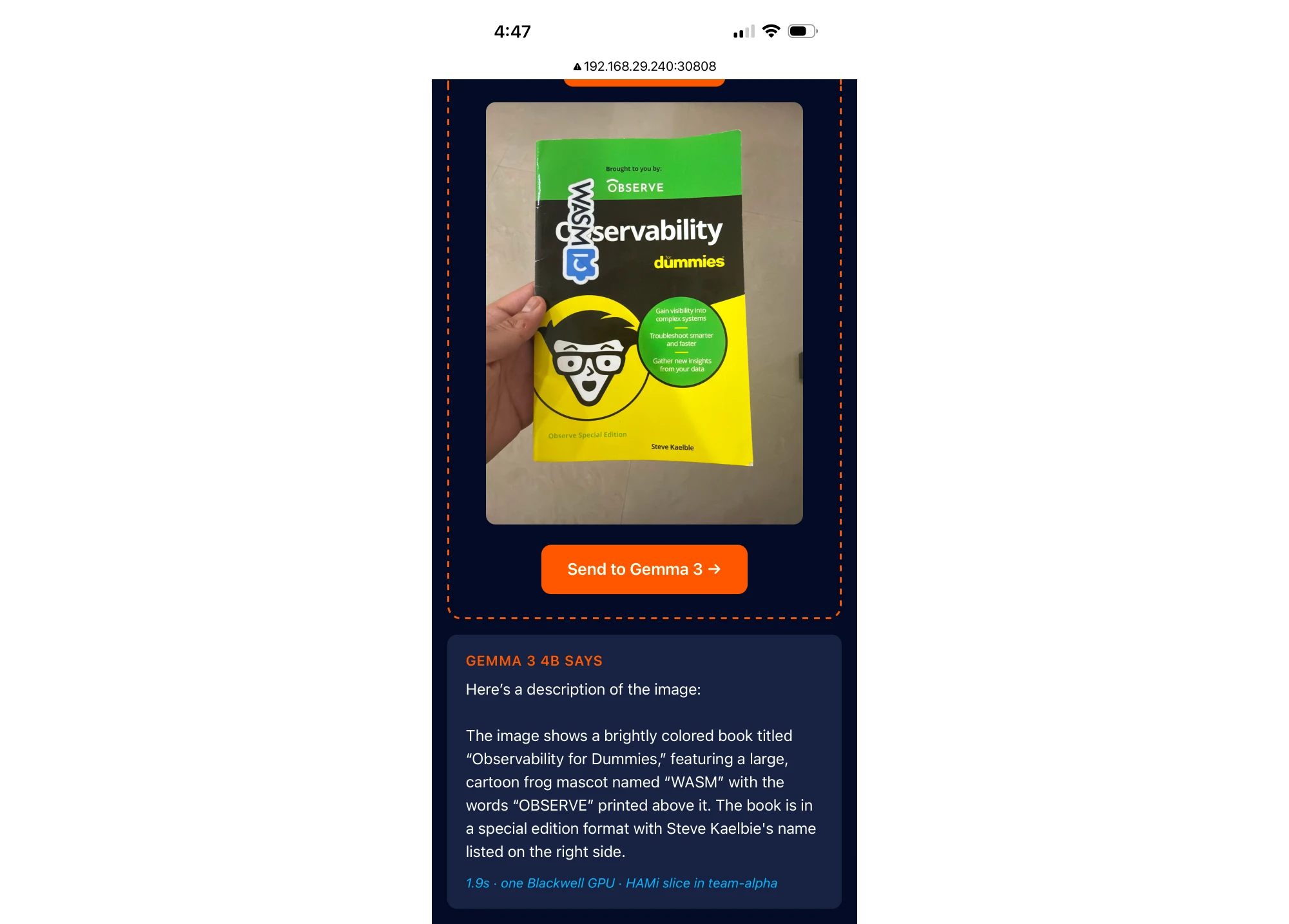
After selecting or capturing an image, the app previews it before sending it to Gemma 3:
After the request completes, the response comes back from the Team Alpha model:
Test the health endpoint:
curl -i --max-time 5 http://192.168.29.240:30808/healthz
Captured output:
HTTP/1.0 200 OK
Server: BaseHTTP/0.6 Python/3.12.13

ok
The DGX dashboard runs locally on the Spark. To expose it through the same network:
kubectl apply -f manifests/dgx-dashboard-proxy.yaml
Wait:
kubectl -n kube-system wait \
  --for=condition=Available deploy/dgx-dashboard-proxy \
  --timeout=120s
Open:
http://192.168.29.240:31000
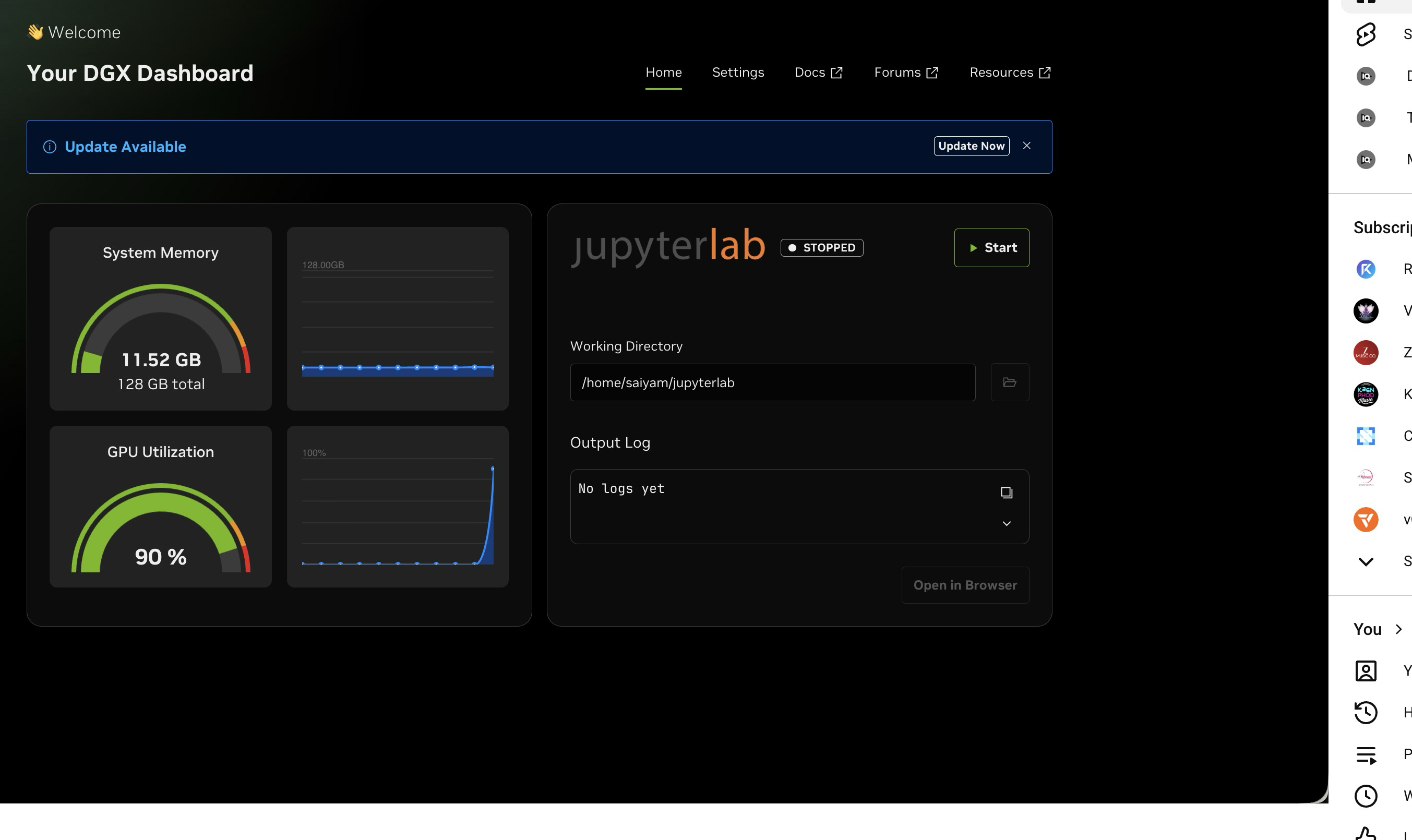
This is useful to show a GPU utilization spike when the model handles an inference request.
During the image inference request, the dashboard showed the GPU utilization spiking to around 90 percent:
Before calling the AI factory ready, check the full path:
kubectl get nodes -o wide
kubectl -n hami-system get pods -o wide
kubectl get pods -A -o wide | egrep 'NAMESPACE|hami|ollama-alpha|ollama-beta|photo-describer|team-alpha-0|team-beta-0'
kubectl describe node "$SPARK_NODE" | sed -n '/Allocated resources:/,/Events:/p' | sed '/Events:/q'
curl -i --max-time 5 http://192.168.29.240:30808/healthz
Expected state:
Spark node Ready
HAMi scheduler Running
HAMi device plugin Running on Spark
team-alpha control plane Running
team-beta control plane Running
ollama-alpha Running
ollama-beta Running
photo-describer Running
nvidia.com/gpu allocated 2 / 2
nvidia.com/gpumem allocated 80k / 80k
phone app health endpoint returns 200 OK
This is the most important operational lesson from this build: Kubernetes node readiness is not the same as AI platform readiness.
kubectl get nodes can be green while the actual inference path is not ready. For GPU-backed AI platforms, readiness must include the scheduler, device plugin, model pods, tenant control planes, service path, and real inference request.
AI infrastructure is moving toward shared GPU pools, multiple teams, many model types, and self-service platform experiences.
This mini local AI factory shows a small version of that architecture:
vCluster for tenant isolation.
HAMi for fine-grained GPU sharing.
DGX Spark for local GPU capacity.
Kubernetes as the common control plane.
The pattern scales beyond this local setup. The hardware may become a cloud GPU fleet, the models may become vLLM or SGLang, and the tenants may become teams, departments, or customers. But the platform problem stays the same:
How do we share expensive AI infrastructure without giving up isolation,
control, and operability?
That is what this mini AI factory is designed to make visible.
Deploy your first virtual cluster today.
